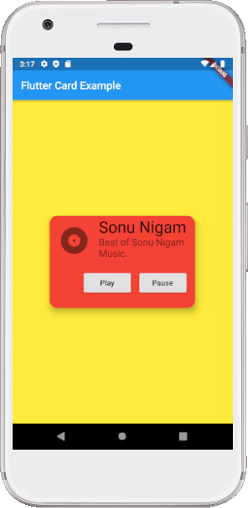
In this example, we will create a card widget that shows the album information and two actions named Play and Pause. Create a project in the IDE, open the main.dart file and replace it with the following code.
import 'package:flutter/material.dart';

void main() => runApp(MyApp());

/// This Widget is the main application widget.
class MyApp extends StatelessWidget {
  @override
  Widget build(BuildContext context) {
    return MaterialApp(
      home: Scaffold(
        appBar: AppBar(title: Text('Flutter Card Example')),
        backgroundColor: Colors.yellow,
        body: MyCardWidget(),
      ),
    );
  }
}

/// This is the stateless widget that the main application instantiates.
class MyCardWidget extends StatelessWidget {
  MyCardWidget({Key key}) : super(key: key);

  @override
  Widget build(BuildContext context) {
    return Center(
      child: Container(
        width: 300,
        height: 200,
        padding: new EdgeInsets.all(10.0),
        child: Card(
          shape: RoundedRectangleBorder(
            borderRadius: BorderRadius.circular(15.0),
          ),
          color: Colors.red,
          elevation: 10,
          child: Column(
            mainAxisSize: MainAxisSize.min,
            children: <Widget>[
              const ListTile(
                leading: Icon(Icons.album, size: 60),
                title: Text(
                  'Sonu Nigam',
                  style: TextStyle(fontSize: 30.0)
                ),
                subtitle: Text(
                  'Best of Sonu Nigam Music.',
                  style: TextStyle(fontSize: 18.0)
                ),
              ),
              ButtonBar(
                children: <Widget>[
                  RaisedButton(
                    child: const Text('Play'),
                    onPressed: () {/* ... */},
                  ),
                  RaisedButton(
                    child: const Text('Pause'),
                    onPressed: () {/* ... */},
                  ),
                ],
              ),
            ],
          ),
        ),
      )
    );
  }
}
Output:
When we run this app, it will show the UI of the screen as below screenshot.