A Text is a widget in Flutter that allows us to display a string of text with a single line in our application. Depending on the layout constraints, we can break the string across multiple lines or might all be displayed on the same line. If we do not specify any styling to the text widget, it will use the closest DefaultTextStyle class style. This class does not have any explicit style. In this article, we are going to learn how to use a Text widget and how to style it in our application.
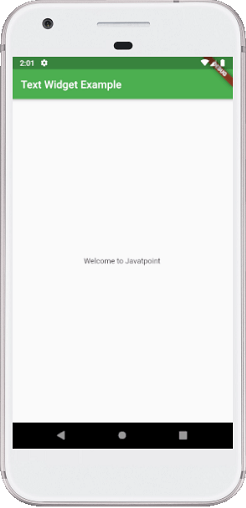
Here is a simple example to understand this widget. This example shows our project’s title in the application bar and a message in the application’s body.
import 'package:flutter/material.dart';

void main() { runApp(MyApp()); }

class MyApp extends StatelessWidget {
  @override
  Widget build(BuildContext context) {
    return MaterialApp(
        theme: ThemeData(
          primarySwatch: Colors.green,
        ),
        home: MyTextPage()
    );
  }
}
class MyTextPage extends StatelessWidget {
  @override
  Widget build(BuildContext context) {
    return Scaffold(
      appBar: AppBar(
          title:Text("Text Widget Example")
      ),
      body: Center(
          child:Text("Welcome to Javatpoint")
      ),
    );
  }
}
In the above code, we have used a MaterialApp widget that calls the home screen using the MyTextPage() class. This class contains the scaffold widget, which has appBar and body where we have used the Text widget to display the title and body, respectively. It is a simple scenario of Text widget where we have to pass the string that we want to display on our page.
When we run this application in the emulator or device, we should get the UI similar to the below screenshot: