Now, we need to use Navigator.pop() method to close the second route and return to the first route. The pop() method allows us to remove the current route from the stack, which is managed by the Navigator.To implement a return to the original route, we need to update the onPressed() callback method in the SecondRoute widget as below code snippet:
// Within the SecondRoute widget
onPressed: () {
  Navigator.pop(context);
}
Now, let us see the full code to implement the navigation between two routes. First, create a Flutter project and insert the following code in the main.dart file.
import 'package:flutter/material.dart';

void main() {
  runApp(MaterialApp(
    title: 'Flutter Navigation',
    theme: ThemeData(
      // This is the theme of your application.
      primarySwatch: Colors.green,
    ),
    home: FirstRoute(),
  ));
}

class FirstRoute extends StatelessWidget {
  @override
  Widget build(BuildContext context) {
    return Scaffold(
      appBar: AppBar(
        title: Text('First Screen'),
      ),
      body: Center(
        child: RaisedButton(
          child: Text('Click Here'),
          color: Colors.orangeAccent,
          onPressed: () {
            Navigator.push(
              context,
              MaterialPageRoute(builder: (context) => SecondRoute()),
            );
          },
        ),
      ),
    );
  }
}

class SecondRoute extends StatelessWidget {
  @override
  Widget build(BuildContext context) {
    return Scaffold(
      appBar: AppBar(
        title: Text("Second Screen"),
      ),
      body: Center(
        child: RaisedButton(
          color: Colors.blueGrey,
          onPressed: () {
            Navigator.pop(context);
          },
          child: Text('Go back'),
        ),
      ),
    );
  }
}
Output
When you run the project in the Android Studio, you will get the following screen in your emulator. It is the first screen that contains only a single button.
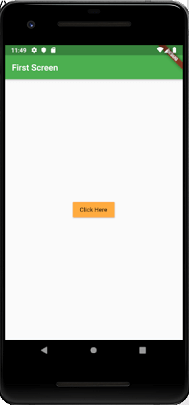
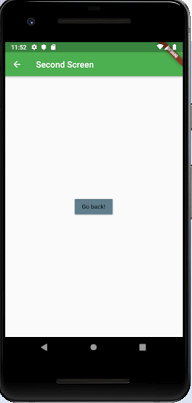
Click the button Click Here, and you will navigate to a second screen as below image. Next, when you click on the button Go Back, you will return to the first page.